Import is under Data → Import (the Data exchange module). It reads any system’s CSV, our own export and suppliers’ XML/YML feeds, and creates or updates products, categories, characteristics, customers and whatever else has columns.
Step 1. Upload a file
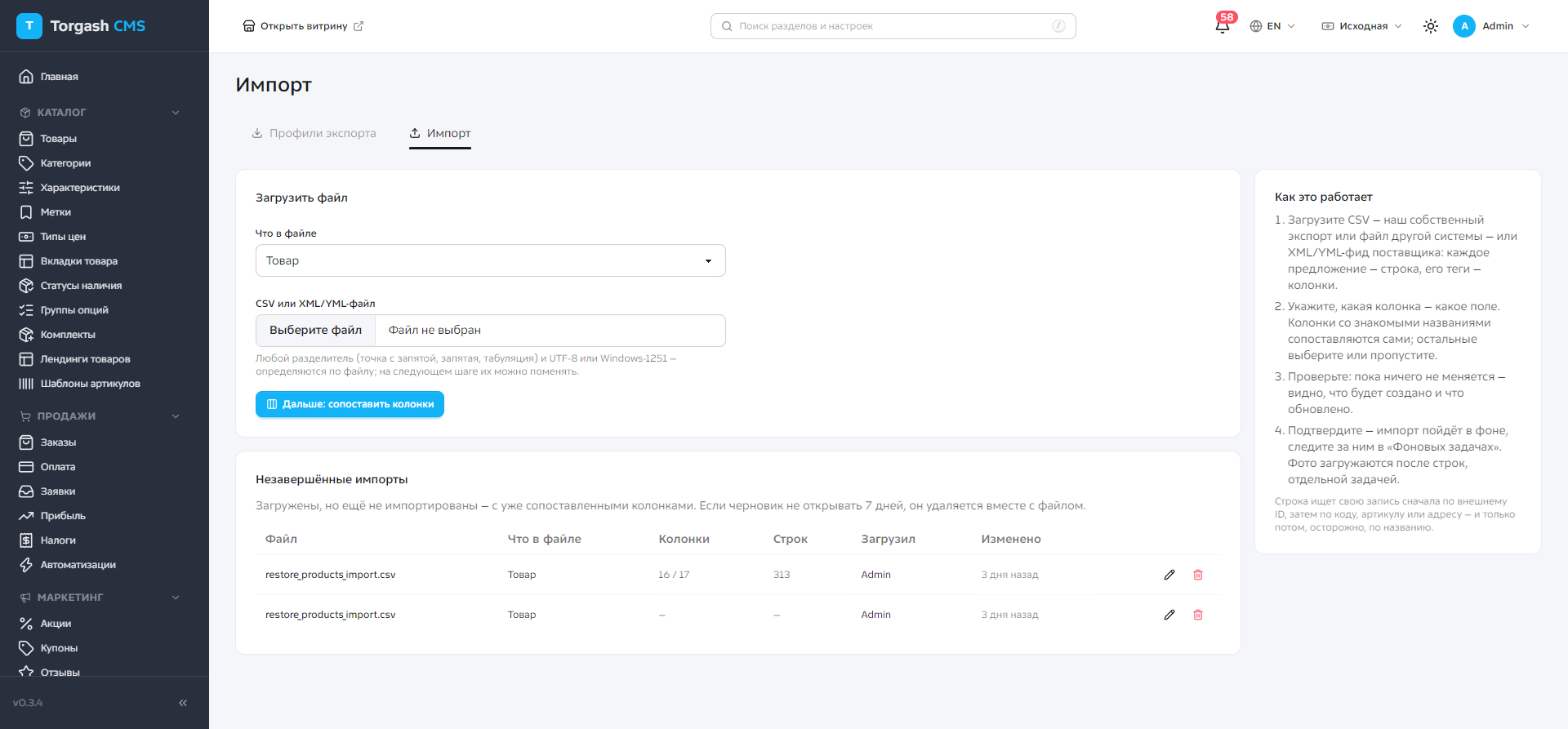
- What the file holds — products, categories, characteristics, customers or another entity.
- File — a CSV with any delimiter (semicolon, comma, tab) in UTF-8 or Windows-1251, or XML/YML. The delimiter and encoding are worked out from the file; the next step lets you change them.
Below are the unfinished imports: uploaded files with their columns already matched. A draft lives seven days and is deleted with its file if nobody opens it.
Step 2. Match the columns
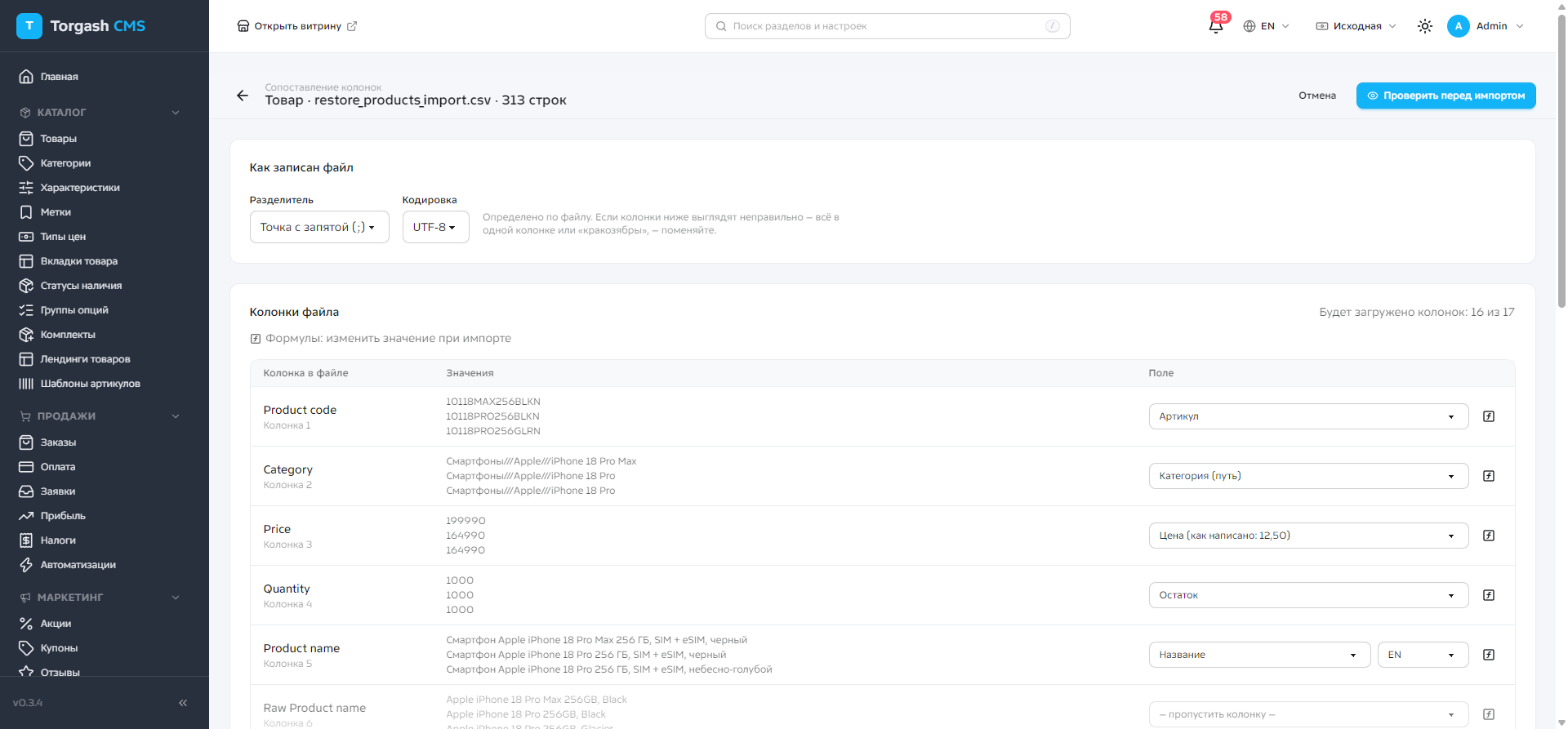
Every column of the file is told which field of the shop it is. Columns with familiar names (“SKU”, “Price”, “Category”) are matched on their own; pick the rest from the list or skip them. The first values of each column stand beside it, so nothing is mixed up.
- Language — for translatable fields: which language the column fills, or “all”.
- Formula — change the value on the way in:
value * 1.2for a markup,concat(value, " pcs"),empty(value) ? "in stock" : value. Available:min,max,abs,empty,contains,lower,upper,trim,left,right,concat,sum,sub,mul,div. - For XML the row element is chosen (the repeating tag, usually
offer); its tags become columns, and a<param name="…">a column named after the characteristic.
Settings of this import:
- Create what is not found — new products, categories and characteristic values are made on the way; switch it off to update only.
- Category levels are separated by — “Phones///Smartphones”: the category is found by its path and created if there is none.
- Photos from the file — downloaded after the rows as a background task of their own; a link already added is never downloaded twice. Address in front of photo file names — for a file that names its photos without an address.
Step 3. Check
Nothing changes yet: the screen shows what would be created, what updated, what skipped, and the rows found by name — worth a look, a match by name is not always the one you meant. Rows whose formula could not be worked out are listed apart: those fields stay as they are.
Step 4. Import
Press Import — it runs in the background; follow it under Background tasks: rows processed, created and updated, errors per row. Photos are fetched after the rows as a task of their own.
The same import runs from the console: php artisan exim:import file.csv --dry-run uses the same presets and columns and the same background task.
What’s next
- Characteristics and groups — merge the values an import wrote differently.
- Export and feeds — the Data exchange module’s page under “Modules”.