Products live under Catalogue → Products: the list of everything that is sold, and a card for each product.
The products list
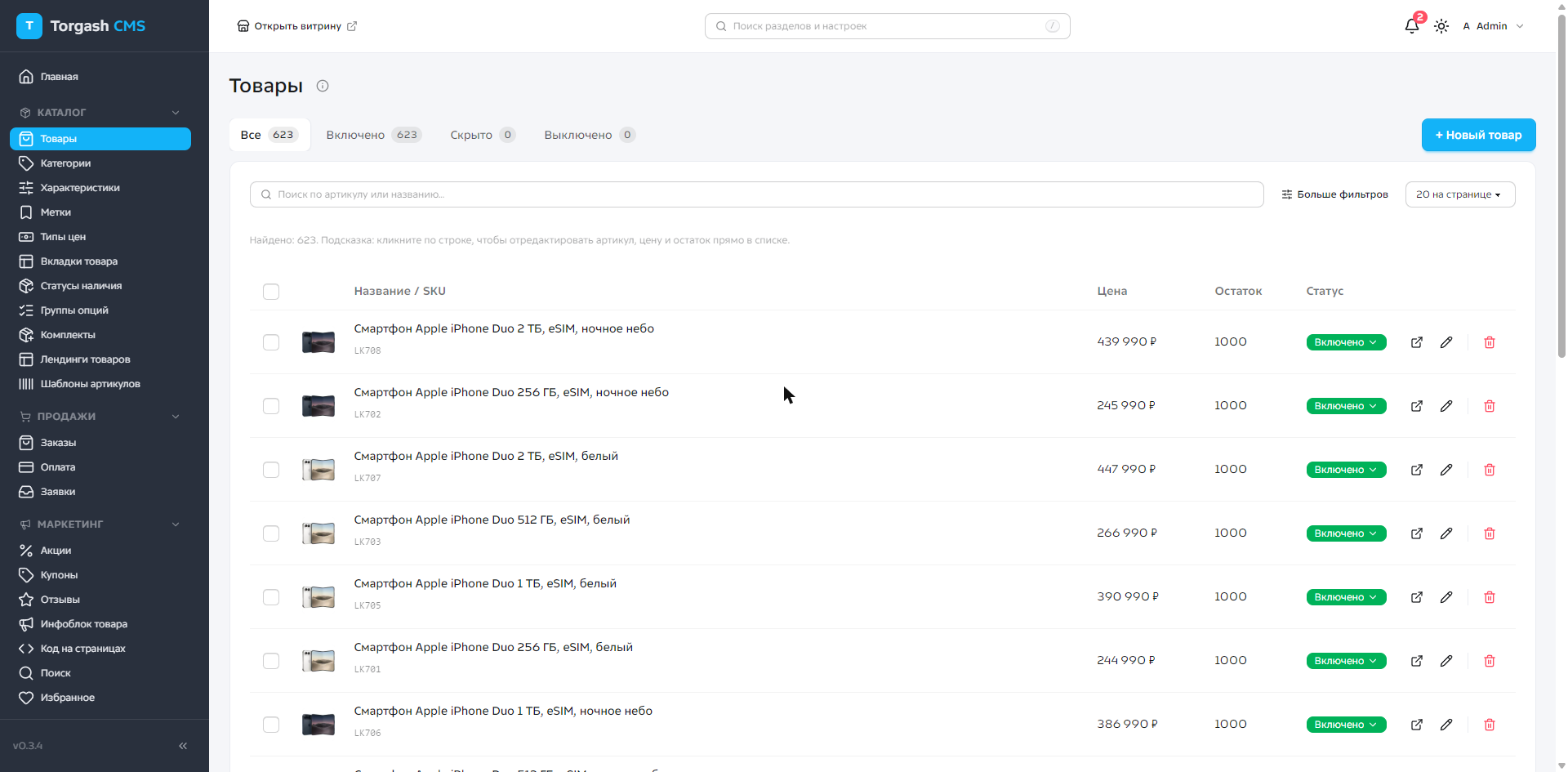
Over the table are the status tabs with counts: All, Enabled, Hidden, Disabled. Inside: search by SKU or name, “More filters” (category, label, availability, price) and how many rows a page shows.
Each row:
- Photo and name — the link opens the product’s card.
- SKU — under the name, in small print.
- Price — in the shop’s own currency, as typed.
- Stock — the total over every warehouse.
- Status — a coloured badge; click it to change the status without opening the card.
Tick several products and a bar appears below: change the status, category or label, move to the trash. “Select all found” applies the action to the whole search result, not only the page.
The product’s card
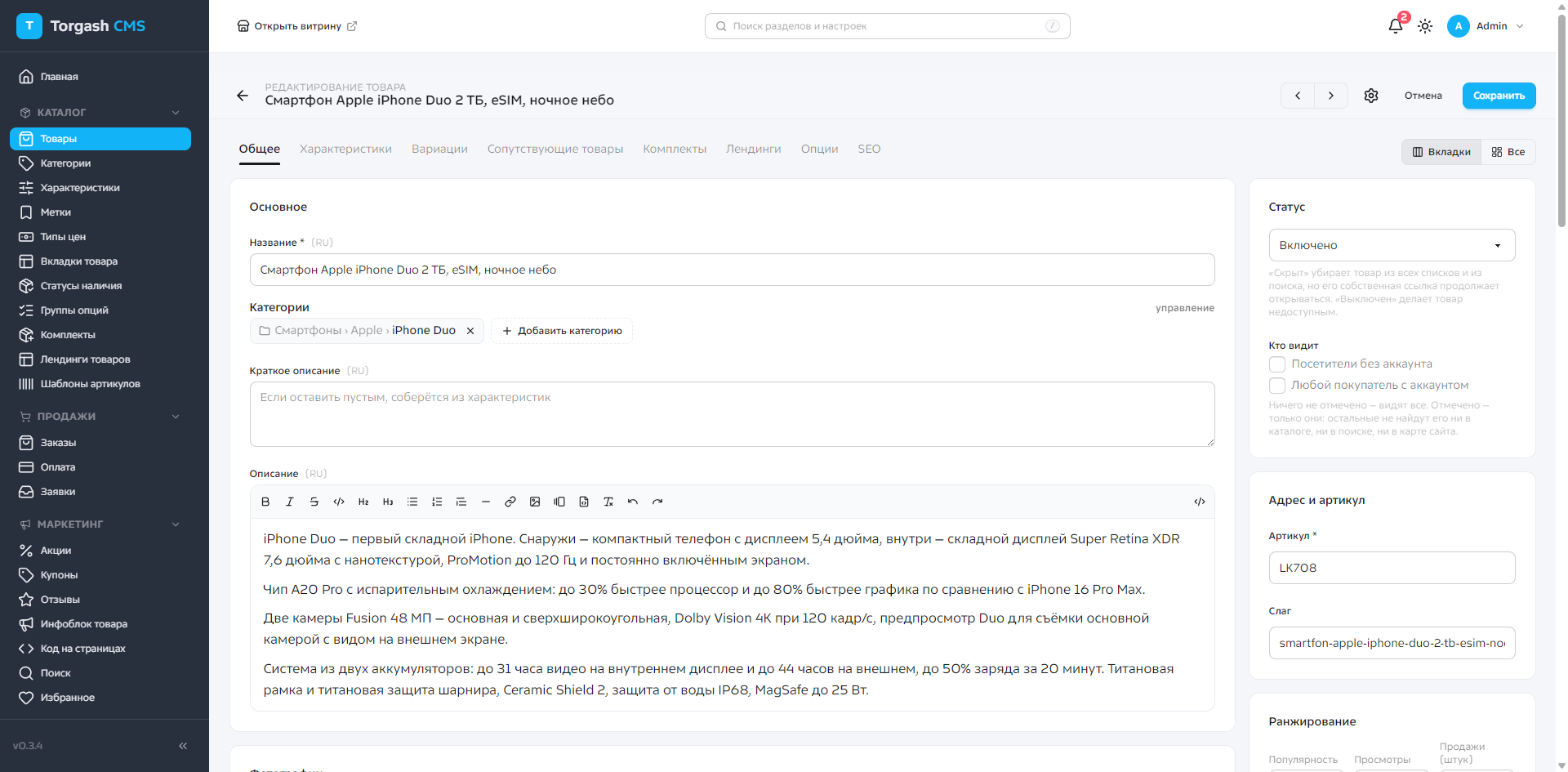
The card is split into tabs: General, Characteristics, Variations, Related products, Kits, Options, SEO and the modules’ tabs (documents, video, 3D). The Tabs / All switch on the right shows everything as one long page, if that suits you better.
At the top is the action bar: back to the list, arrows to the previous and the next product, a menu with “Save and close”, “Duplicate” and delete, the Cancel and Save buttons. On a phone the bar sticks to the top and the buttons stand at the foot of the screen.
Basics
- Name — required in the shop’s base language.
- Categories — one or several; the first counts as the main one. The product shows in each of them and in every parent.
- Short description — the short text on the card in a list. Leave it empty and it is composed from the characteristics.
- Description — an editor with headings, lists, links and pictures. Staff text is cleaned of scripts when shown.
Photos
The product’s gallery: drop files or pick them from the disk, the first photo is the main one, the order changes by dragging. Every photo can carry a caption (alt), which search engines read. Video and 3D models are attached on their own tabs.
Status and who sees it
- Enabled — the product is on the storefront.
- Hidden — the product is in no list and no search, but its own link opens. Handy for “by link only” products.
- Disabled — the product’s page is unavailable.
Who sees it — the customer groups the product is shown to. Nothing ticked: everybody. Groups ticked: the others find the product neither in the catalogue, nor in search, nor in the sitemap.
Address and SKU
- SKU — the product’s unique code. Left empty, it is filled by the shop’s SKU template.
- Slug — the page’s address,
/product/<slug>. Made from the name; changing the slug of a published product creates a redirect from the old address.
Ranking
Popularity, views and sales grow by themselves: what a view and an order are worth is set in the catalogue settings. Created at is what “Newest first” sorts by; set it by hand to lift a product.
Price
- Price and old price — in the currency chosen beside the field. A price typed in a currency other than the shop’s is kept as typed and recalculated when the rate changes.
- Price types — wholesale, dealer and the others set up under “Price types”: a value for this product, or a markup rule.
- Quantity breaks — a price by quantity.
Stock and shipping
- Stock — one total without warehouses; with warehouses, per warehouse on their tab.
- Availability status — “in stock”, “to order”, “expected”: what the customer sees and whether the product can be ordered at zero stock. Set up under “Availability statuses”.
- Weight and dimensions — grams and millimetres; “not measured” differs from zero, and shipping treats it so. The weight can come from a characteristic.
- Needs no delivery — for services and digital goods: no address and no delivery method are asked at checkout.
Labels
“New”, “Bestseller”, “Sale” and your own: coloured plates on the card. Set here by hand, or by rules on the labels screen.
Characteristics
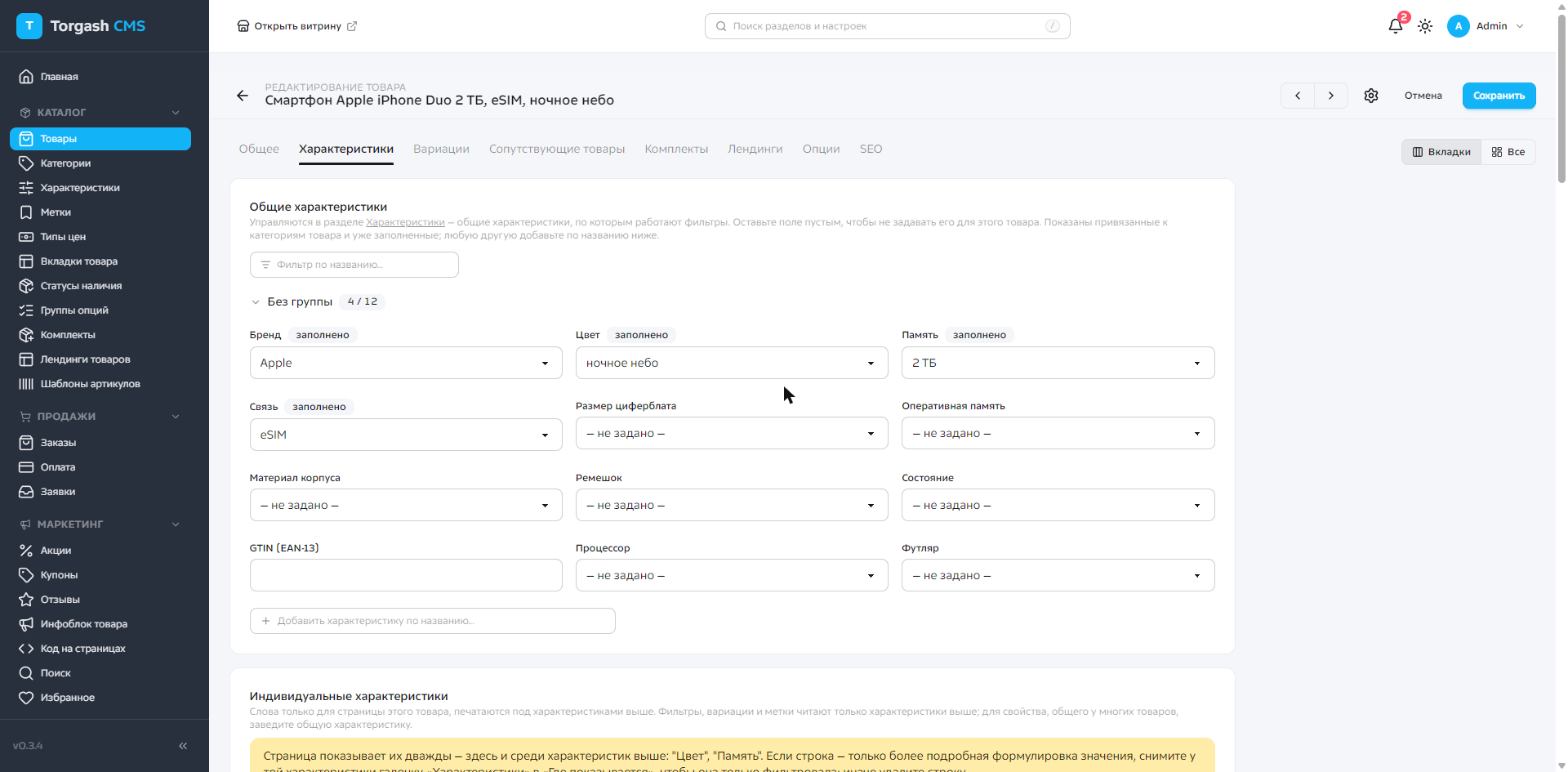
The tab shows this product’s set: the characteristics bound to its categories and the ones it already has a value for. They are grouped, each group counts “filled / all”, and a large set gets a filter by name.
- A list characteristic is a choice of value; a text one is a box; a number one a number.
- An empty field means “this product has no such characteristic”: it is not shown and takes no part in the filter.
- Any other characteristic of the shop is added by name in the box at the bottom; it joins the set and is saved with the rest.
Individual attributes below are rows for this product’s page alone: “In the box: a cable, a case”. Filters, variations and labels do not read them; for a property many products share, make a shop characteristic.
Variations
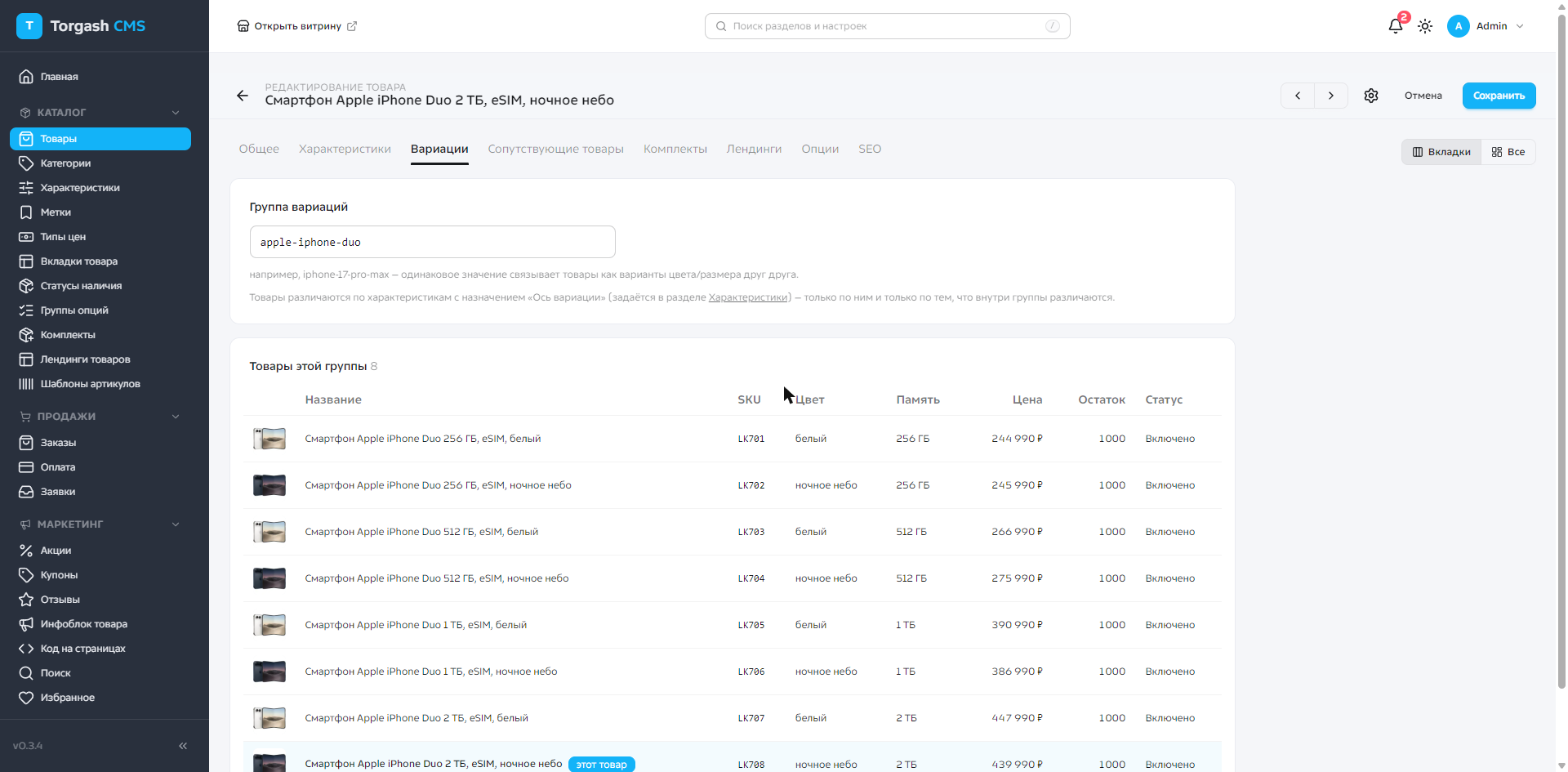
Variations are separate products sharing a variation group: the same value in the field binds them as each other’s variants of colour, memory or size. What they differ in is decided by the characteristics marked as a “Variation axis” (on the characteristics screen): on the product page the customer switches them with buttons, and the other variants are listed in a table under the buy button.
The group’s table lists all its products with the axes, price, stock and status; the current one is marked.
Clothing and footwear: a card per colour, the size on it
A variation axis has a setting How it stands in the catalogue (on the characteristic’s screen):
- A card of its own in the catalogue — every value is a card of its own: black and white sneakers side by side;
- Chosen on the card — the values make no cards, the customer picks one on the product page: twelve sizes stay one card.
So for footwear the colour is a card and the size and insole are chosen on it. A “size 44” filter opens each card at 44 straight away.
Photos and the description need not be copied into every size: the Takes its content from field on the Variations tab names the product whose photos, description, short description and characteristics are shown where this one has none. “Automatically” — a product of the same card with photos. Nothing is copied: what the size has filled in is its own and wins, and the SKU, external id, price, stock and weight are always its own. In an import it is the “Takes its content from (SKU)” column.
The other tabs
- Related products — what to offer alongside: accessories, replacements.
- Kits — bundles with this product and a discount for the bundle (the kits module).
- Options — option groups with a surcharge: engraving, the case’s colour, a size (the options module).
- SEO — the title, description and address for search engines, the picture for a shared link, “keep out of search engines”.
What’s next
- Categories — the tree a product is put into.
- Characteristics and groups — what products differ in and what they are filtered by.
- Import from a file — fill the catalogue from CSV, XLSX or YML.