A zone is a place on the storefront that the theme or a module opens: “Homepage — above the products”, “Header — after the search box”, “Footer — middle column”, “Phone menu”. A block is what stands in the zone: products, banners, text, a menu, a form. Appearance → Blocks lists every zone of the active theme; open one to arrange its blocks.
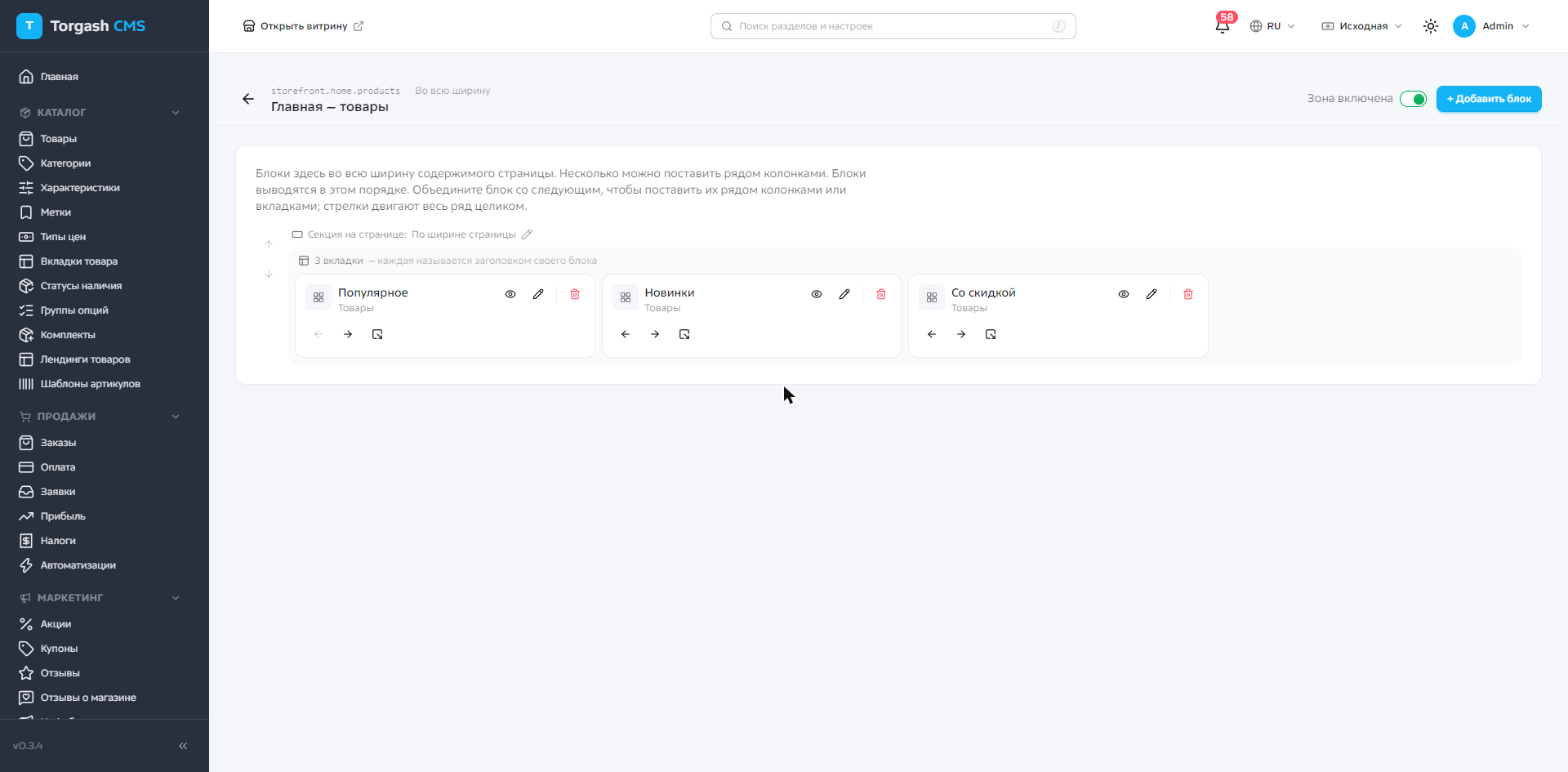
The zone screen
Blocks are drawn in the order they stand in; the arrows move them. Each has a switch, edit and delete. Disable zone hides everything in it without deleting anything: switch it on and the same arrangement comes back.
Add a block shows the types that suit this zone; the rest are behind “Show all block types”: they can be put here, but may look out of place. A new block goes to the end of the zone.
Block types
Types come from modules, so the list depends on what is on. The main ones:
- Products: a row or a grid from one source: the whole catalogue, a category (with its subcategories), a label, a yes/no flag, a running sale, SKUs typed by hand; a grid can open the rest with “Show more”. A source that no longer exists shows nothing, not the whole catalogue under the old heading.
- Categories: the catalogue’s tree as a menu; Category tiles: with pictures, as a grid or a scrolling row.
- Banners: a slider or a single banner from Banners.
- Text: formatted text from the visual editor; HTML: your own markup as it is, placeholders such as
{callback_link}work in it. - Menu: one of the menus, as a line, a list, columns or a drawer; Links: a short list of links with icons.
- Enquiry form and Newsletter subscription, Share, Comments.
- Deal of the day with a countdown, Sales as cards, Blog posts, Collections, Shop rating and Shop reviews, Our stores from the public warehouses, Payment systems, the visitor’s Town, Language and currency, Account.
Columns and tabs
There are no separate “columns” or “tabs” blocks. Join with the block below: as columns stands two or three blocks side by side in one row; as tabs draws them as one row of tabs, each named by its block’s heading. “Popular / New / On sale” on the home page is three ordinary Products blocks joined as tabs: reorder them, switch one off, give one its own conditions, and the row follows.
- A block with nothing to show (a sale with no products) does not become a tab.
- A row with one block left is drawn as a heading over the content.
- Tabs work without JavaScript.
Display conditions
Every block has Shown when: the storefront, the language, the customer group, the page, whether the visitor is signed in, the calendar, the day of the week, the time of day, the town. No conditions means always. A condition from a module that was switched off hides the block rather than being ignored.
Section on the page is the band the block stands in: full width or in a column, with a background or without; a custom CSS class is a hook for your own CSS.
Restore from the theme
A theme brings blocks for its zones: the contacts in the header, the footer’s columns. They are laid out once, at installation, and never touched again. Blocks → Restore from the theme shows, zone by zone, what the theme brings and what stands there now:
- Add missing is safe: the theme’s blocks the zone does not have go to the end, everything of yours stays where it is. A theme block you edited counts as present.
- Replace the zone makes the zone exactly what the theme has and deletes what is in it now. The confirmation names what will go and marks which of those blocks are yours: the theme does not have them, and they will not come back.
The footer
The footer is built of zones: the advantages band, three columns (the rating and contacts on the left, menus in the middle, social networks on the right), “Our stores”, the bottom line, the very bottom. A column is drawn only when something printed in its zone; the rest share the width. The footer’s layout and colours are in the theme settings.
What next
- Banners and sliders: what the Banners block places.
- Menus: what the Menu block places.
- Products: the labels and flags the Products block picks products by.