Automations are in Sales → Automations. A rule does something by itself when something happens in the shop: messages a manager in Telegram about a new order, emails the customer the bank details, sets a status or assigns a manager, says a product is running low.
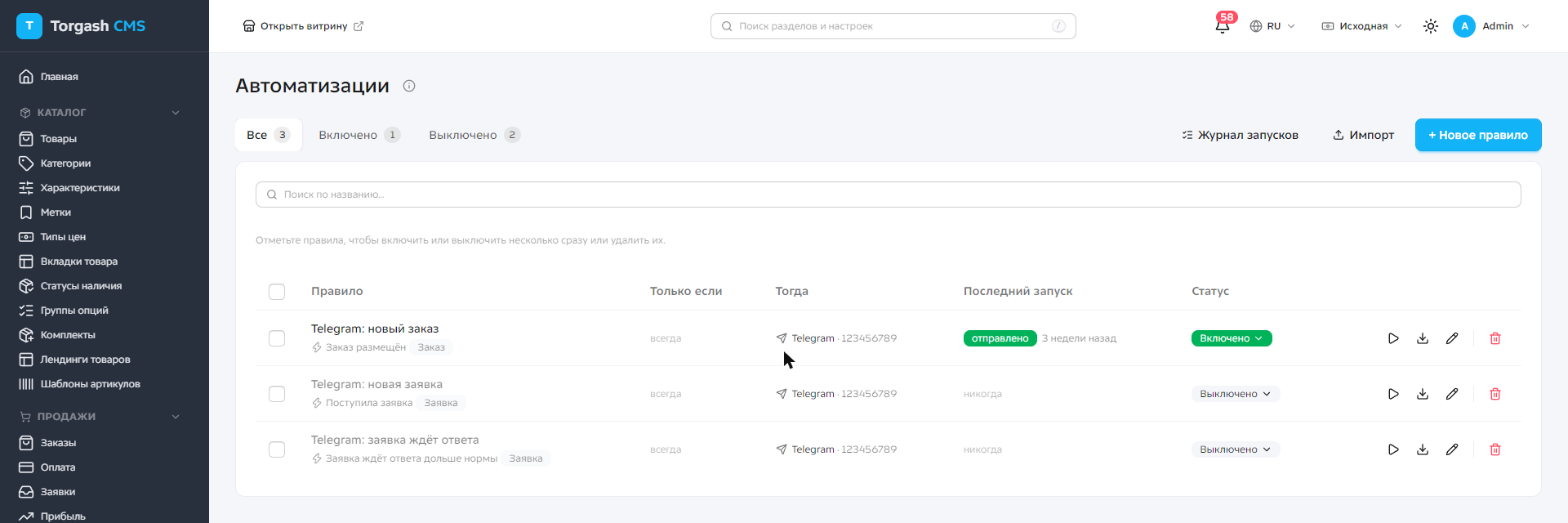
A row shows what the rule reacts to, under what conditions, what it does, when it last ran and how that ended. The buttons on the right: test, download the rule as a file, edit.
Ready-made rules
It is easier to start from a ready one: the Ready-made rules button above the list (or Import).
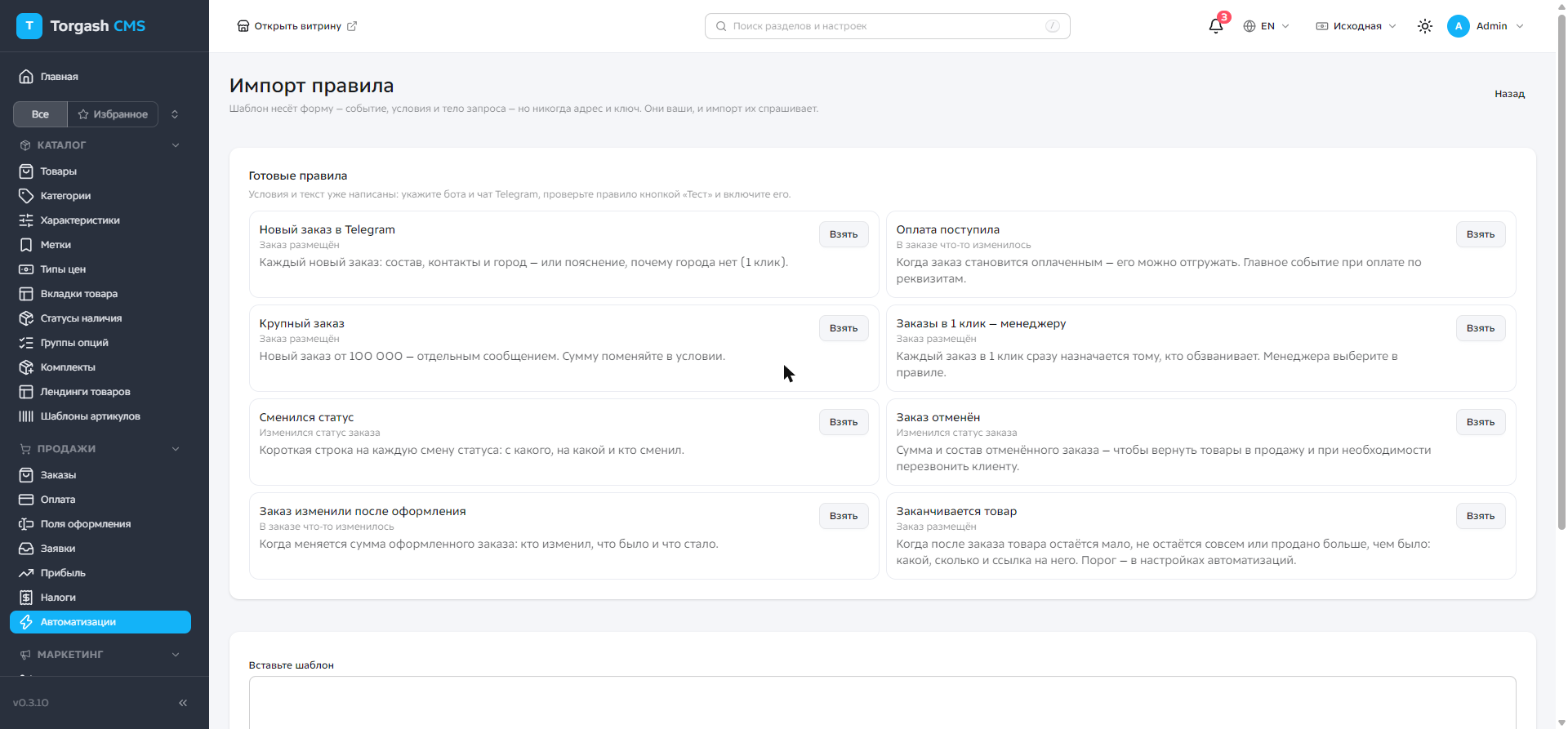
| Rule | What it does |
|---|---|
| New order to Telegram | Every new order: total, customer, town (or “No town given (One click)”), items, link; below — which products are running low |
| Payment received | When an order becomes paid — “ready to ship”. The main event for payment by bank transfer |
| Large order | A new order of 100 000 or more in a message of its own. Change the amount in the condition |
| One-click orders to a manager | Every one-click order is assigned to whoever rings them back |
| Status changed | “Order 05001: New → Shipped (Ivan)” |
| Order cancelled | The total and the items of a cancelled order, the customer’s phone |
| Order edited after it was placed | Who changed it, what it was and what it is now |
| Running low | Which products the order nearly emptied, how many are left, a link to the variation |
Press Use: the rule asks for the Telegram bot token and chat id. If you already have Telegram rules, leave both empty — the same ones are used. The rule arrives switched off: check it with the test button and enable it. From then on it is an ordinary rule — change anything.
How a rule is built
Four steps in a row: When something happened, wait if needed, Only when the conditions hold, Then the action.
When
What happens — the event:
- An order is placed — once, at checkout.
- Something about an order changes — it can be narrowed to what matters: status, payment state, amount paid, total, items, manager, payment method, delivery method, delivery cost. Nothing ticked — any change.
- An order status changes.
- An enquiry arrives, The customer writes again, An enquiry status changes, An enquiry waits for an answer too long — when enquiries are on.
One action of a staff member is one event, however many fields it changed.
Wait
Wait, min on the right. 0 — at once. The shop is not held up: the wait happens in the background. That is how “half an hour after checkout, if the order is still unpaid…” is done.
Only when
All the conditions must hold. “One of these” goes inside a single row: a list of statuses is one condition, not three. A rule without conditions runs on every event.
Conditions for an order:
| Condition | Asks |
|---|---|
| Order status, Payment state | is in / is not in the ticked ones |
| Order total | at least / at most |
| Product category | has an item from / every item from / no item from — subcategories included |
| Payment method, Delivery method, Country, City | is, contains, one of |
| Manager | assigned / not assigned |
| Coupon | any / this one / none |
| How it was placed | checkout, one click, by a manager, API, exchange for a return |
| The customer’s orders | first order / ordered before (by the account, or a guest’s phone or email) |
| Stock | every item in stock / an item not in stock / an item runs low after this order / an item is sold out after this order |
For an enquiry: kind, status, the contact left (a phone, an email, only a phone, from an account), manager, what they wrote (contains a word).
Then
Action — one or several, in order:
- Send a Telegram message — “a new order” on the manager’s phone, say. It needs the Bot token (create a bot with @BotFather) and the Chat id: add the bot to the chat or group, write anything there and open
api.telegram.org/bot<token>/getUpdates— the number after"chat":{"id":is the id. The token is not shown after saving; an empty box keeps it. - Email the customer — a subject and a text with the variables, to the email on the order or the enquiry, in the shop’s letter design (logo, colours, footer). A blank line starts a paragraph. Bank details for a transfer, “we could not reach you — ring us back”. A customer with no email is a line in the log and no letter.
- Add a note to the history — a line in the order’s history (or the enquiry’s notes) with the rule’s name: “payment reminder sent”. Seen by the staff only.
- Send a webhook — a request to an outside system: method, address, headers and the body you compose from the order.
- Change the order status — the same as on the order card: stock is taken or returned once.
- Assign a manager — a staff member only.
- Change the enquiry status and Assign the enquiry to a manager.
Changing the status and the manager also writes a line to the order’s history with the rule’s name, so a manager sees where a status they did not set came from.
The message text
On the right — Variables: click one and it goes where the cursor is. They are written in double curly braces: {{ order.number }}, {{ order.customer_name }}, {{ order.total_formatted }}.
Useful order variables:
{{ order.date }}— when it was placed, by the shop’s clock: “01.11.2026 14:05”;{{ order.source_label }}— how it was placed: “One click”, “By a manager”;{{ order.items_text }}— the items in one line: “Boots ×2; Hat ×1”;{{ order.fields.CODE }}— the answer to your checkout field;{{ order.admin_url }}— a link to the order in the admin.
The order’s items
Repeated by a block:
{{#order.items}}• {{ item.name }} × {{ item.qty }} — {{ item.line_total_formatted }}
{{/order.items}}
If there is — this, if not — that
A block with # is printed only when the value is there; a block with ^ — when it is not. A one-click order has no town, and instead of a bare “Town:” the message says why:
{{#order.city}}Town: {{ order.city }}{{/order.city}}{{^order.city}}No town given (a one-click order){{/order.city}}
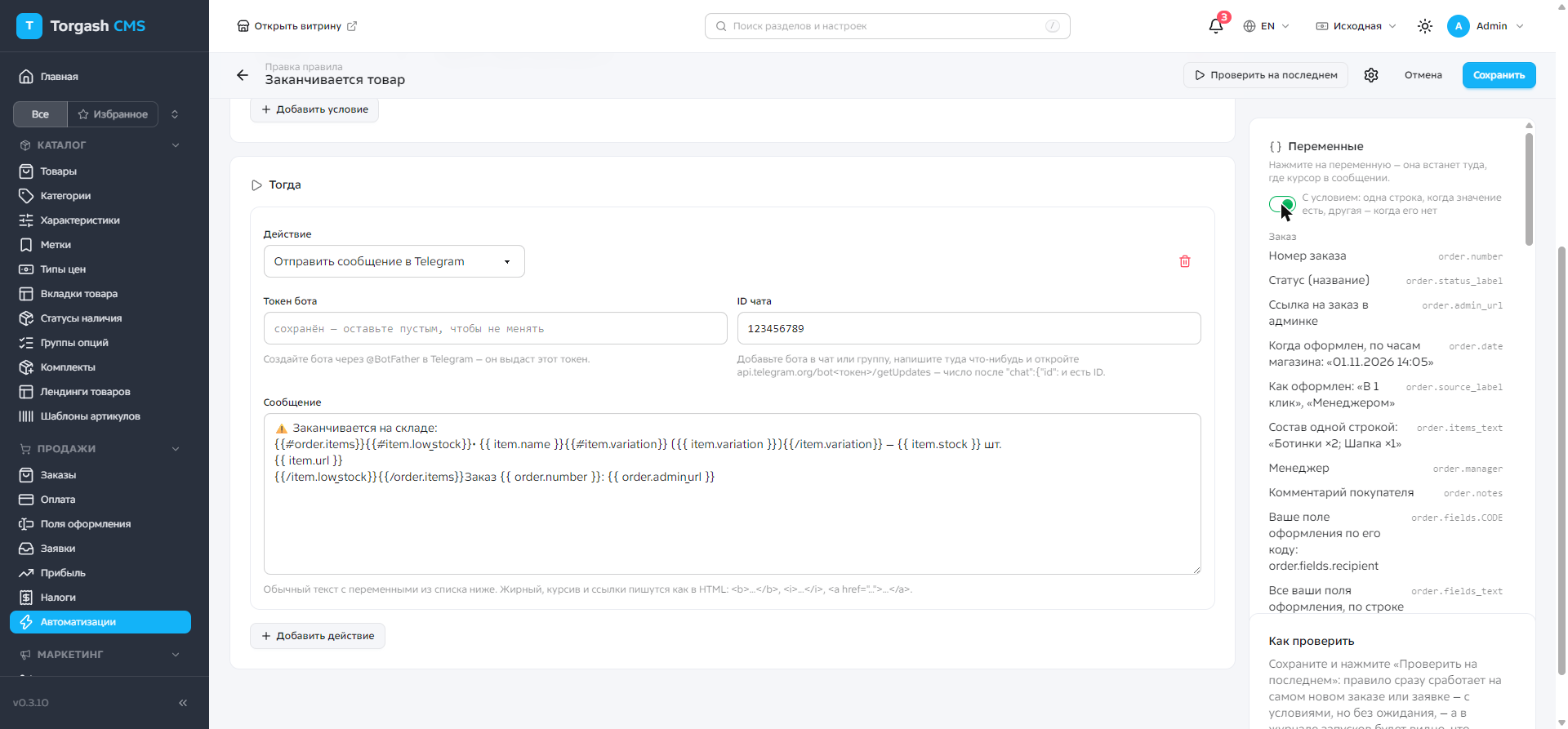
No need to type it: switch on With a condition in the variables panel, and a click on a variable inserts the whole pair — only the words are left to change.
What it was and who changed it
In rules on a change of an order:
{{ before.status_label }},{{ before.total_formatted }},{{ before.payment_state_label }},{{ before.manager }},{{ before.items_text }}— the values before the change. A field that did not change holds what it holds now;{{ actor.name }}— who changed it: a manager’s name, “the customer” or “the system” (a payment confirmed by the gateway, an order cancelled by its own deadline);{{ changed_text }}— what changed: “Status, Total”.
Order {{ order.number }}: {{ before.status_label }} → {{ order.status_label }} ({{ actor.name }})
Running low
Stock is asked at the moment of the order: a sale is what empties a shelf. Every line of the order has {{ item.stock }} — what is left after this order — and {{ item.low_stock }} — “running low”. The order has {{ order.low_stock_count }}, how many of its products run low.
{{#order.low_stock_count}}⚠️ Running low:
{{#order.items}}{{#item.low_stock}}• {{ item.name }} ({{ item.variation }}) — {{ item.stock }} pcs.
{{ item.url }}
{{/item.low_stock}}{{/order.items}}{{/order.low_stock_count}}
The link opens the variation itself. The threshold is in the module’s settings: Running low at, pieces. 0 — the catalogue’s “Low stock threshold” (usually 10). A manager usually wants to know at 1–2.
Formats
A value can go through a format: {{ value | format }}.
| Format | Does |
|---|---|
phone | a phone as one word: “+38 (067) 123” → “+38067123” |
digits | only the digits |
int | a number without its fraction: “1042.25” → “1042” |
lower, upper | lower / upper case |
trim | no spaces at the ends |
url | for a link’s address |
Small things
- In Telegram bold, italic and links are written as in HTML:
<b>…</b>,<i>…</i>,<a href="…">…</a>. A customer’s name with angle brackets will not break the message. A message longer than 4096 characters is cut: Telegram takes no more. - Amounts without
_decimalare in cents:order.totalfor 150.00 is15000, as APIs expect. For systems that want a string there isorder.total_decimal(150.00), for a person —order.total_formatted. - In a webhook the values are escaped for JSON: a surname with a quote will not break the request.
This is not a programming language: variables are filled in, blocks repeated and conditional ones printed — everything else stays as written.
Testing and the log
Save the rule and press Test on the latest one: it runs at once on the newest order or enquiry — with its conditions, but without the wait. Skipped by its conditions on a test is a true answer about the rule too.
The Run log (the button above the list) shows every attempt: what was sent and what came back, a receiver’s refusal included. A receiver that could not be reached (the network, “try later”, an error on its side) gets a retry — that one action, not the whole rule: 3 times, 2 minutes apart by default (the module’s settings). A refusal — a wrong token, a chat not found — is never retried: it stays until fixed. A webhook carries the same Idempotency-Key on every attempt, so the receiver can tell a retry from a second order. The log is kept as many days as the setting Keep the run log, days says.
Sharing a rule
Export (the button in the row) saves the rule as a file: the event, the wait, the conditions, the text. Addresses and header values are not in the file — neither the bot token nor an API key. Import asks for them before creating the rule, and the rule arrives switched off: test it before enabling.
Conditions and actions this shop does not have (the module is not installed) are dropped on import.
What’s next
- Orders and statuses — which statuses a rule can set.
- Checkout fields — your own questions at checkout and their answers in rules.
- Enquiries — the “an enquiry waits too long” rule.