Orders are under Sales → Orders: everything a customer placed on the storefront, what came through the API or 1C, and what a manager made in the admin.
The orders list
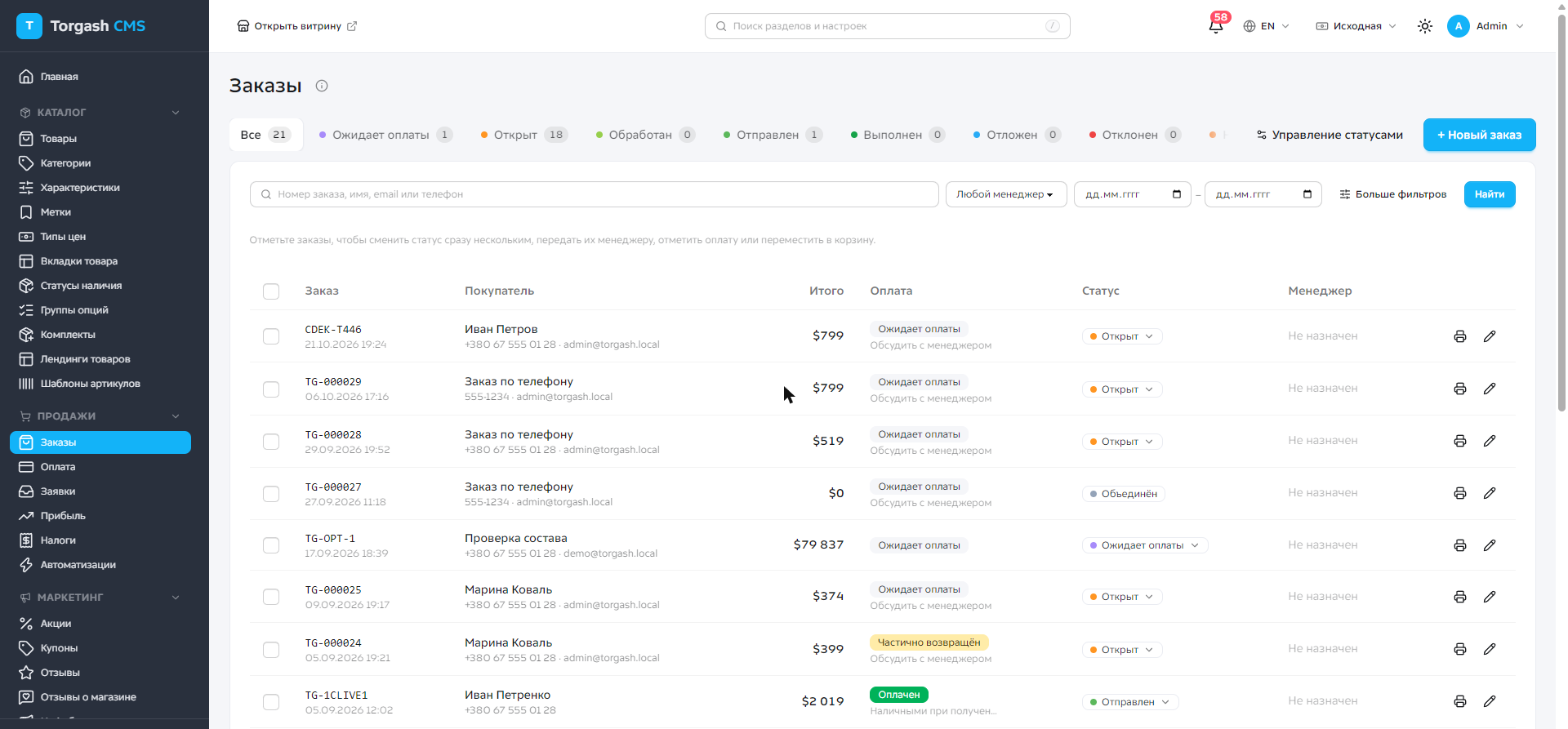
The tabs over the table are the statuses with counts, in your order. Inside: search by number, name, e-mail or phone, the manager, a period, “More filters” (payment state, payment method, delivery, “contains product #”).
A row holds the number and date, the customer with contacts, the total, the payment (state and method), the status, changed right here, the manager, the invoice and the page buttons.
Tick several orders and the bar below offers to change their status, give them to a manager, mark them paid or move them to the trash.
The order’s page
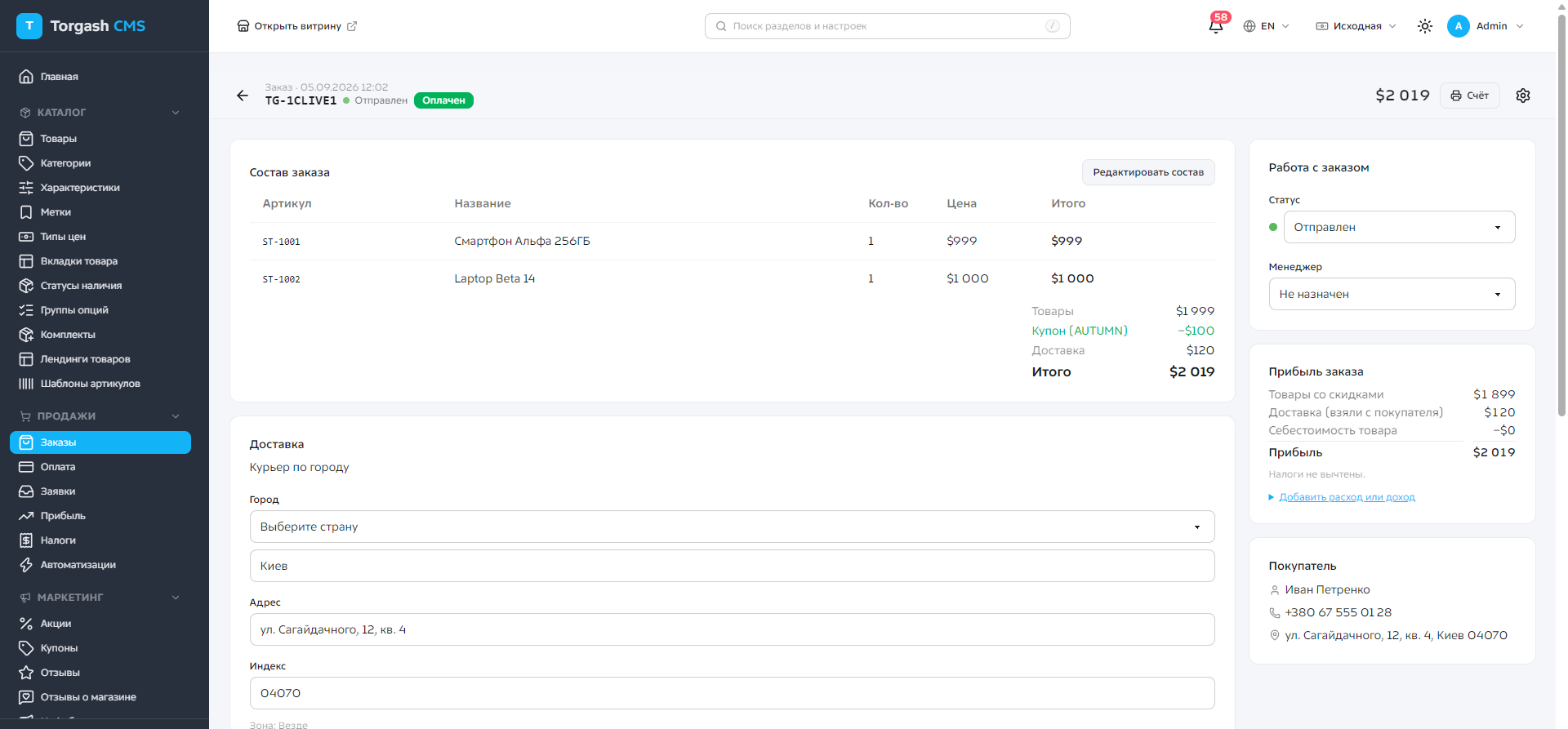
The head is the number, the date and how it was placed (one click, by a manager, through the API), the status and the payment state, the total, the Invoice button (a printable form) and a menu: the customer’s page, merge another order into this one, to the trash.
Items
The order’s lines with SKU, quantity, price and the totals: goods, discounts and coupons, delivery, total. Edit items opens the editor: add a product by search, change a line’s quantity and price, remove a line, apply a coupon or the manager’s discount. Stock and sums are recounted with every change.
Work on the order
- Status — a choice of your statuses; each does to the stock what it is told to (below).
- Manager — who the order is given to; the list filters by it.
- Payment — the method and the state: awaiting, paid, partially, refunded. Money received is marked here, by amount; for online payment the state is set by the payment system.
Delivery
The method, address, postal code, zone and cost. The address is edited right here; for a carrier (Nova Poshta, CDEK) the branch, the waybill and the label are on its tab.
Customer
Name, phone, address, the note to the order, this customer’s other orders, the address the order was placed from (the guard can block it). An order from an account links to the account.
Activity
Everything that happened to the order: who changed the status and when, what changed in the items, which letters went out, what the payment system answered. Read in the staff member’s language.
Profit
With the inventory module on: goods with discounts, delivery charged to the customer, the cost of goods by batches, your own expenses and income on the order.
Order statuses
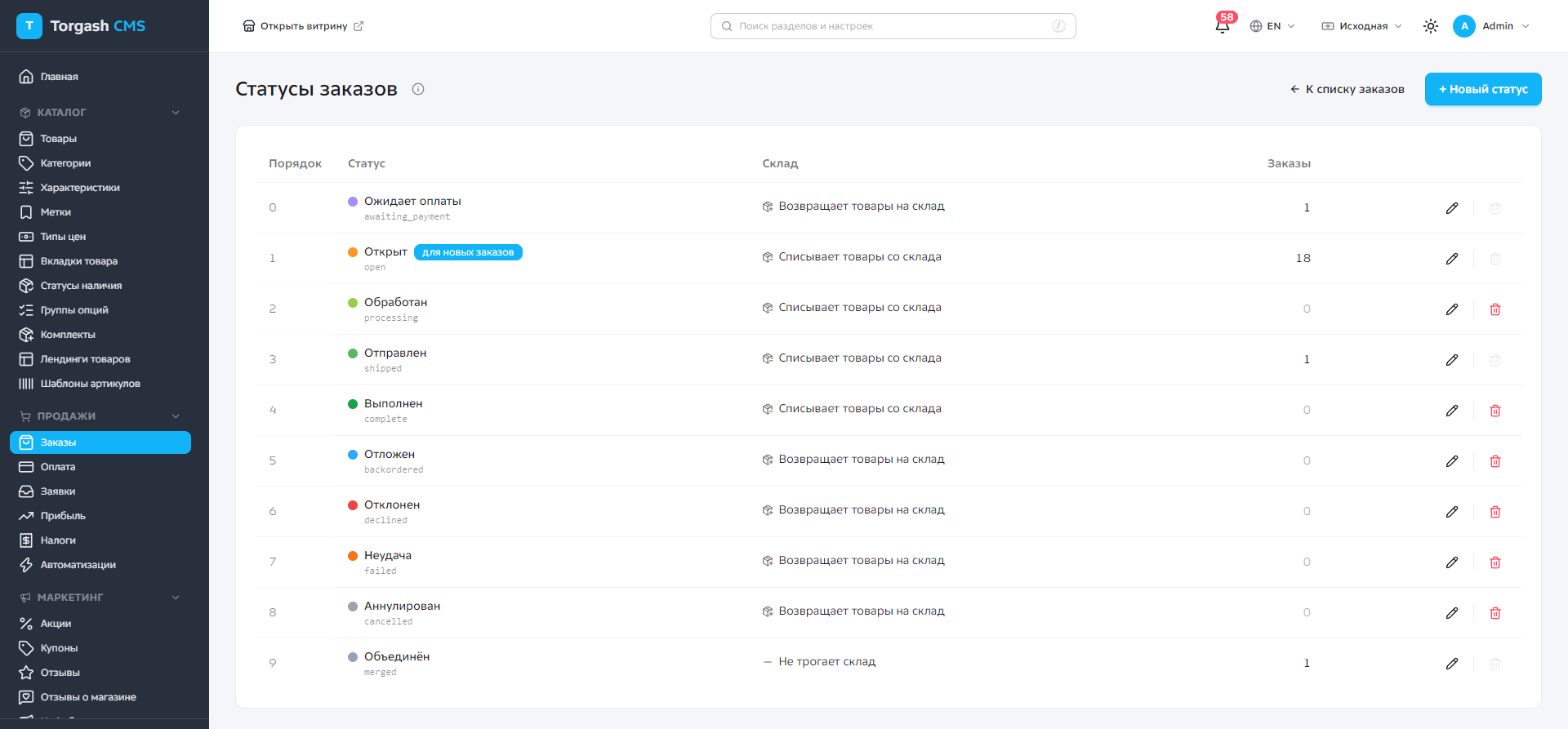
Manage statuses over the orders list. A status is a name, a colour, a code and, above all, what it does to the stock:
- Takes the goods off the shelf — the order holds its goods: “open”, “processing”, “shipped”, “complete”.
- Puts the goods back on the shelf — the order will not go ahead: “declined”, “cancelled”, “failed”. Moving into such a status gives back exactly what the order had taken, once.
- Does not touch the stock — a step of your own in between: “waiting for a call”.
For new orders — the status an order gets at checkout. An order paid online stands in “Awaiting payment” until the money comes and holds no goods.
Position — the order of the tabs over the list and of the choices in a status select.
What’s next
- An order placed by a manager — make an order for a customer who rang (the next page of the section).
- Payment and delivery — the next pages of the section.